Setting Statuses
For more information on how to set statuses, you can visit our page on ‘Using the External Task Tool’, accessible here.
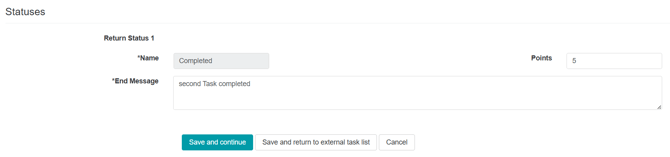
While External Task responses are recorded automatically within InsightHub, it is also possible to mark response statuses manually.
Marking Statuses Using the Response Data Tab Search Tool
Within the Response Data tab, it is possible to mark individual responses as Completed or Incomplete, and to remove responses if you wish to exclude them from future CSV export files and analyses for your External Tasks.
To access the Response Data tab:
1. Go to Back Room > Research Tools > External Tasks
2. Click the ‘Response Data’ tab
Note: The Response Data tab is available within both live and closed External Tasks.
From the Response Data tab, you can see the full list of responses to your External Task. You can also use the search function to find a particular participant using their name, email address, screenname or user ID.
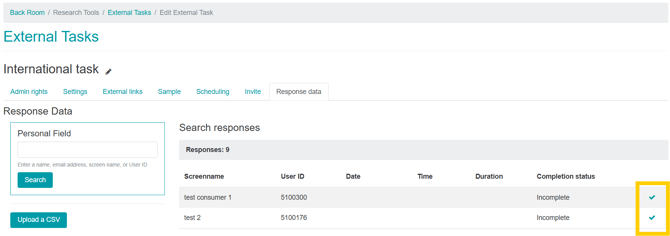
Once you have found the response you would like to edit, you can click the tick to the right-hand side, to change their status from Incomplete, to Complete.
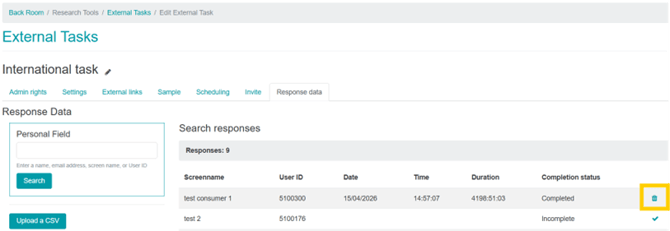
Once responses are marked as complete, you have the option to delete them if you do not wish to include them in any future CSV download files or analyses. To do this, click the ‘Bin’ icon to the right-hand side of the response or responses you would like to delete.
To mark responses with other participation statuses, such as ‘Routed out’ or ‘Over quota’, as previously set in your Settings tab, or to mark multiple responses as ‘Completed’ at once, you can use the upload CSV option.
Marking Completes Using the Upload a CSV Option
To upload multiple responses and mark their participation status:
1. From the Response Data tab, click ‘Upload CSV’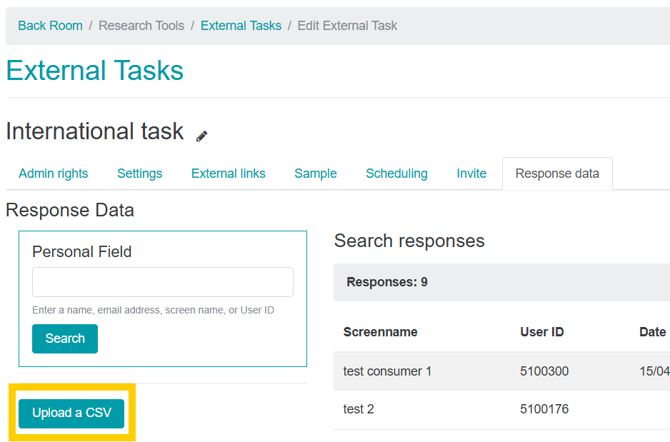
2. You will then see the required format for the CSV file
3. Follow the required CSV file format to create your upload file (this should be in the ‘Comma Separated Values’ file format)
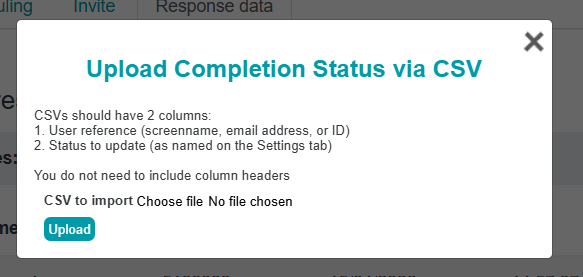
Note: You will need to ensure that the ‘Status to update’ column contains the exact status name set within the Settings tab, in order for InsightHub to match these up to the correct responses.
4. Click ‘CSV to import’ to select your file, then click ‘Upload’
Your upload will then show in the Database > CSV Imports page, where you can review its progress. Once the upload is completed, the statuses you have set for each participant in the file will be allocated to their response.