Session Roles
Observers can be any client account holders that you want to observe the session without being able to directly interact with user participants (i.e., observers will be able to see and hear participants, but participants will not be able to see or hear any observers).
For a step-by-step guide on how to add session roles, you can view our dedicated Adding Session Roles page.
An example of session roles assigned for an InterviewMR Focus Group: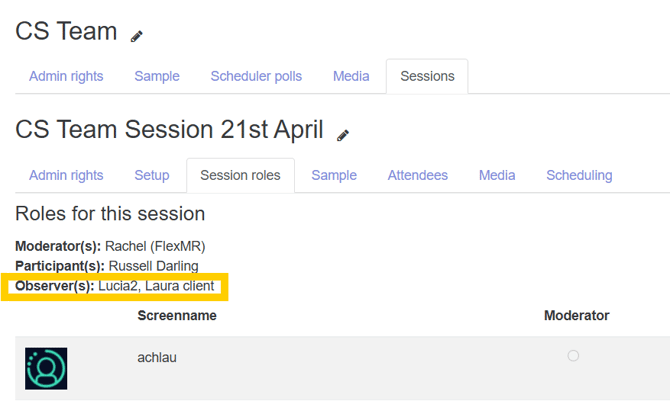
Good to know: Consumer participants are the participants taking part in your research. This is different from client-type participants, who can act as co-hosts, and whose roles are set within the ‘Session Roles’ tab, shown in the image above.
Viewing Participants and Participant Information
As an observer, you can view the list of consumer participants taking part in the session: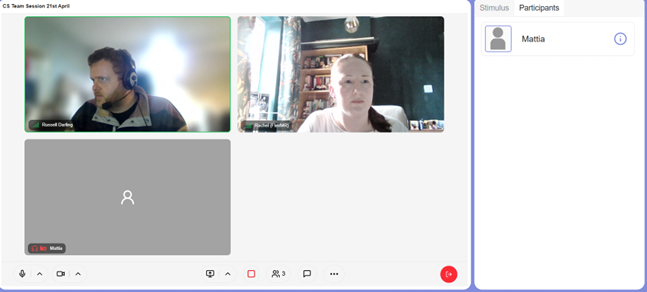
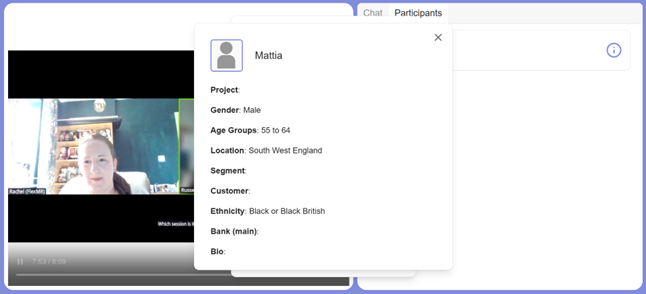
You can also view demographic and other relevant profile information about the participants during the session.
Good to know: The profile information must be set to ‘show within FG tool tips’ in the Database > Add & Edit User Fields page [RE1.1]prior to the session, for any participant data you would like to be visible. It is important to ensure that no Personal Identifiable Information (PII) is set to show to any person who should not have access to this.
You can access our dedicated page for Adding and Editing User Fields here.
Viewing Session Stimuli
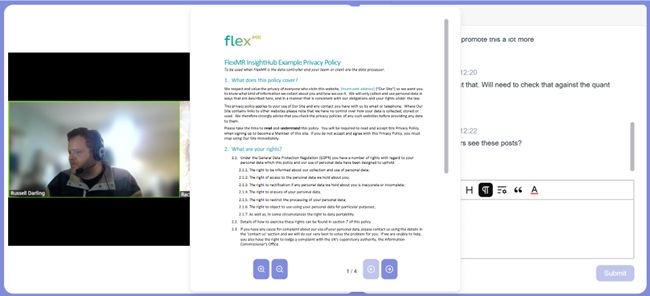
Observers are able to see any stimuli shown to consumer participants within the session. This includes images, PDFs and videos.
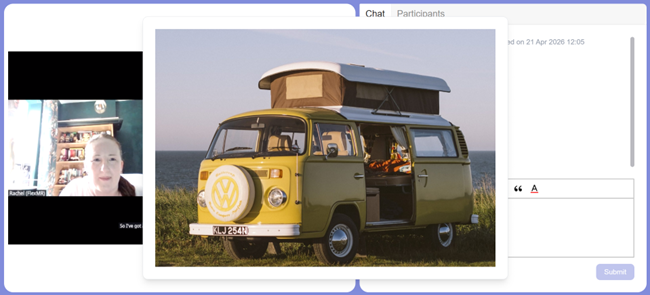
For PDF documents, observers have the same viewing options as consumer participants do, and can zoom in and out, and navigate between pages:
Observer Chat Room
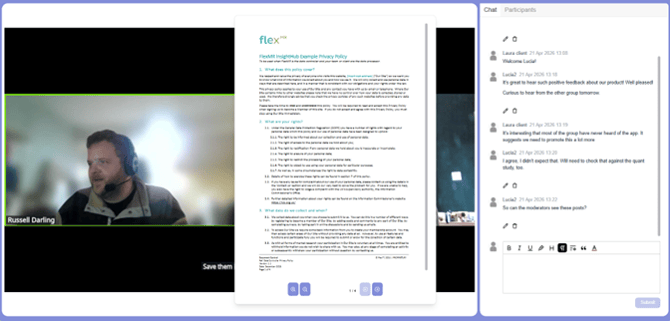
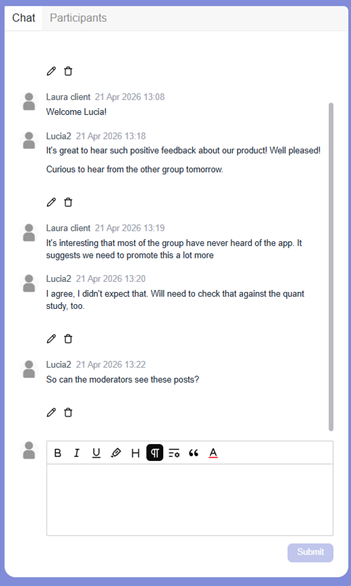
Within the Client Viewing Room, the chat function allows observers to discuss the session together. As session moderator can also join the Client Viewing Room, to interact with the observers.
Good to know: Within InterviewMR sessions, it is common for the session host to interact with a Client Viewing room moderator via a separate chat channel.
The role of the host is to engage and guide the consumer participants. Therefore, the moderator within the Client Viewing Room usually takes on the responsibility of welcoming observer clients, and ensuring that all consumer participants are able to use their cameras and audio during the session.
While it may be beneficial for the host and observer moderator to communicate to keep each other updated, this is not possible within InterviewMR. Keeping the session and the Client Viewing Room separate, minimises the potential for miscommunication, so a separate chat together tends to work well.