To view and download video recordings within VideoMR:
- Go to Back Room > Analysis Tools > VideoMR
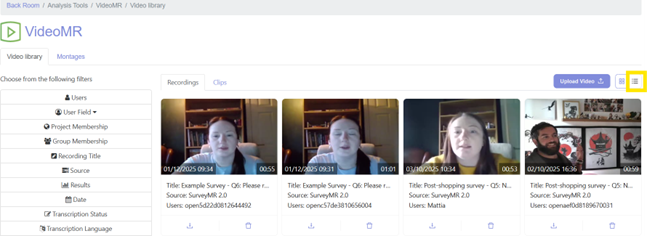
- Click on the 3 lines icon at the top-right of the page
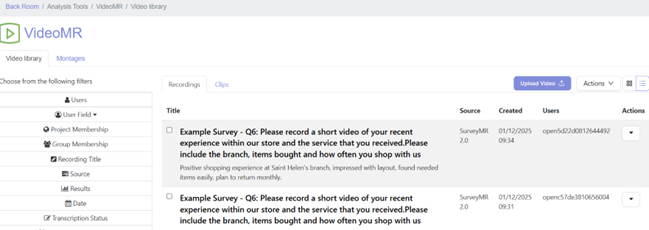
This will take you to the ‘List view’ of all recordings:
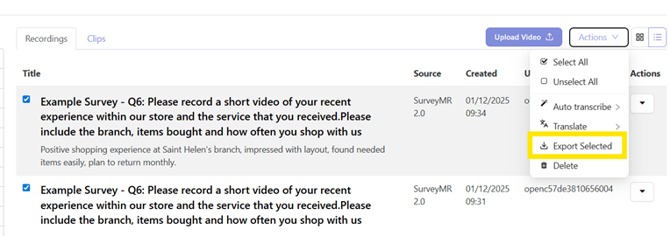
3. Tick the recordings you would like to download, then click the ‘Actions’ drop-down menu in the top-right, and select 'Export Selected’
That’s it! Your recordings will be generated in the MP4 format and will be available in the waiting room once they have been downloaded.